Understanding Tilt Shift
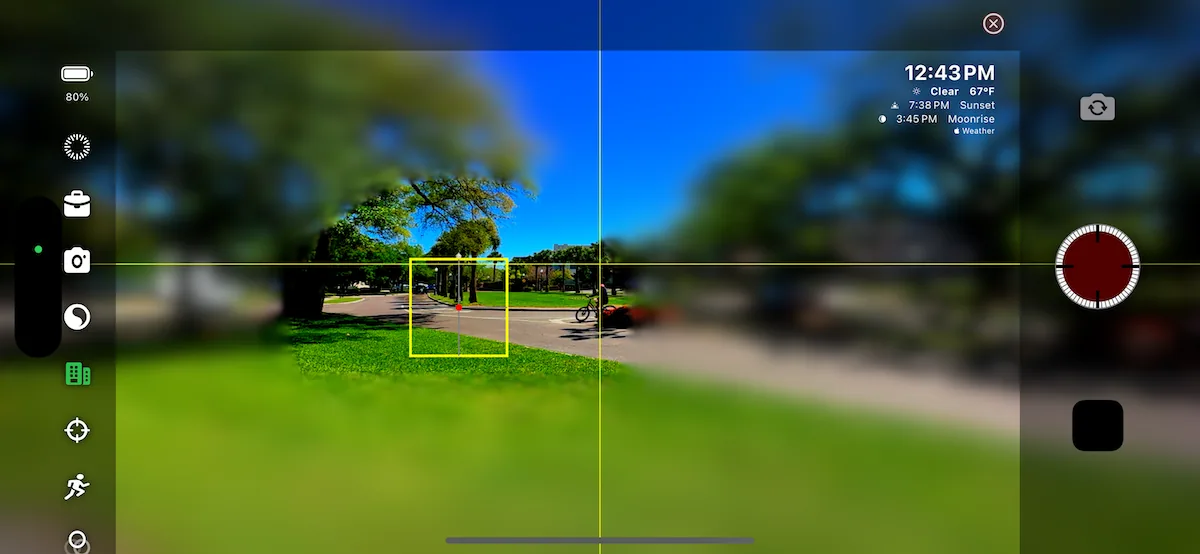
Tilt shift is a photographic and videographic technique that creates a miniature effect on images or videos. Traditionally achieved with expensive specialized lenses on DSLR and video cameras, TimeLapsed App brings this professional effect to your iPhone through sophisticated software implementation.
The technique involves selectively blurring parts of the image while keeping other parts in focus, creating the illusion that the scene is a miniature model rather than a full-sized environment. This effect is achieved by manipulating the depth of field to create a sharp transition between blurred and focused areas.
The tilt shift tool in TimeLapsed App can also be used for privacy or creative purposes by selectively blurring areas of your environment that you don't want visible. This adds versatility for product photography, vlogging, or other content creation needs.
Key Benefits
- Customizable Blur Intensity: Choose from three blur ranges to fine-tune the tilt shift effect
- Easy Implementation: Create effects that traditionally require expensive equipment and technical skill
- Creative Control: Experiment with different blur levels to achieve your desired aesthetic
- Real-time Application: See and adjust the effect as you shoot, rather than in post-processing
TimeLapsed App Tilt Shift Settings
Tilt shift settings are accessible in the TimeLapsed App's camera under Image Enhancements. When tilt shift is enabled, a green buildings icon appears in the camera sidebar for quick access to these settings.
Getting Started with Tilt Shift
Option 1: Tilt-Shift Profiles
For beginners, we recommend starting with the pre-configured profiles. These are found under the Effects category, where you'll find several tilt shift profiles to choose from.
Option 2: Tilt-Shift Mode
You can enable tilt shift at any time and even toggle it on/off during a timelapse. Go to the Camera and select the Image Enhancements tab. Look for the buildings icon to enable tilt shift and customize your settings.
Tilt Shift Features & Controls
Top Blur
Top blur is a traditional tilt shift technique. It creates a gradient blur that starts at the top of the screen and gradually fades out toward the middle of the screen.
- Top Blur Height: Adjusts how far down the blur extends from the top (maximum 50% of screen)
- Top Blur Amount: Controls the intensity of the blur effect, which gradually reduces as it approaches the center
Bottom Blur
Bottom blur is the complementary element to the top blur in creating a classic tilt shift effect. It creates a smooth transition from the sharp center to a blurred bottom edge.
- Bottom Blur Height: Adjusts how far up the blur extends from the bottom (maximum 50% of screen)
- Bottom Blur Amount: Controls the intensity of the blur effect, which gradually reduces as it approaches the center
Background Blur with Configurable Focal Point
This feature allows you to blur the entire background or only blur outside of a circular focal point, creating tunnel vision-like effects or drawing attention to specific subjects.
- Background Blur Amount: Controls the intensity of the background blur
- Focal Point Radius: Adjusts the size of the non-blurred focal area
- Focal Point Lock: Links the focus point to your camera's focus, controlled by tapping on the screen
- Focal Point Radius Softness: Softens the edge around the non-blurred circle for a more natural transition
Adjusting the focal point radius
Adjusting the focal point softness
Locking Focal Point to Camera Focus
Creating Miniature World Effects
The tilt shift profiles included with TimeLapsed App are designed to create stunning miniature world effects, one of the most popular and visually striking timelapse techniques.
To achieve an effective miniature world look, the app combines selective blurring with color enhancements. The most impactful miniature effects typically use increased Saturation, Contrast, and Sharpness to give scenes the vibrant, toy-like appearance characteristic of miniature models.
These additional settings are available in the Image Enhancements tab, allowing you to fine-tune the look beyond the basic tilt shift blur effects.
Tips for Better Miniature World Effects
- Shoot from Above: The miniature effect works best when shooting from an elevated position looking down at the scene
- Enhanced Colors: Increase saturation and contrast to make colors pop like painted miniature models
- Faster Playback: Play your timelapse at a faster speed to enhance the miniature feel (tiny things appear to move more quickly)
- Subject Selection: Choose scenes with people, vehicles, or other moving objects to enhance the miniature illusion
- Adjust Blur Amounts: Experiment with different blur intensities for top and bottom to find the perfect balance
Tilt Shift Summary
With the comprehensive tilt shift tools provided in TimeLapsed app, you can create endless combinations of effects to achieve your unique creative vision. Remember:
- There are no strict rules - experiment with different combinations of top blur, bottom blur, and focal points
- These blur tools can be used for creative purposes beyond traditional tilt shift effects
- Combine with color enhancements for the most striking visual impact
- Consider the shooting angle and scene composition for the most convincing miniature effects
- Try toggling tilt shift on and off during a timelapse for creative transitions
The versatility of TimeLapsed App's tilt shift features allows you to create professional-quality effects that would typically require expensive specialized equipment. With practice, you'll be able to create stunning miniature worlds and unique visual styles that set your timelapses apart.
Related Guides
Color & Image Enhancement
Learn about all the color adjustments and filters you can use with tilt shift effects.
Read guide
Recommended Apps
Discover complementary apps that work well with TimeLapsed for editing and sharing your tilt shift timelapses.
Read guide
Recommended Gear
Find the best iPhone mounts and accessories for stable and professional tilt shift timelapses.
Read guide