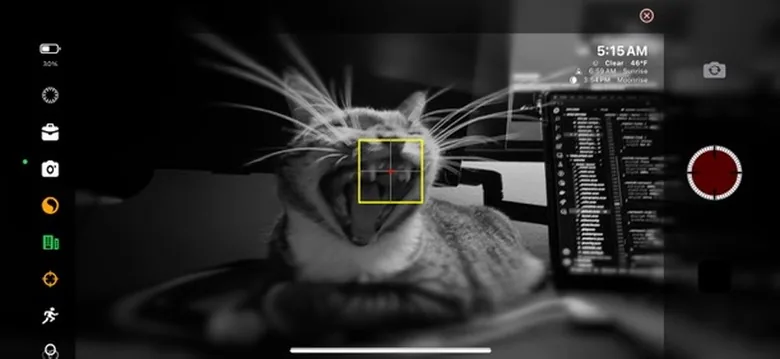
Watch App Interface
Main Control Screen
Recording Controls
- Large start/stop button
- Pause/resume functionality
- Emergency stop with haptic feedback
Live Statistics
- Current frame count
- Recording duration
- Estimated video length
- Storage remaining
Camera Status
- Current camera settings
- Active profile indicator
- Connection status
Swipe for more controls
Complete Control Set
Basic Controls
- Start Recording
- Pause/Resume
- Stop Recording
- Take Photo
Quick Actions
- →Switch Camera
- →Toggle Light Painting
- →Change Profile
- →Emergency Stop
Live Status
- Recording Status
- Elapsed Time
- Frame Count
- iPhone Battery
Setup Instructions
Initial Setup
- 1.1
Install Watch App
Open Watch app on iPhone → My Watch → Available Apps → Install TimeLapsed
- 1.2
Launch on Both Devices
Open TimeLapsed on iPhone and Apple Watch simultaneously
- 1.3
Automatic Connection
Devices connect automatically via WatchConnectivity framework
- 1.4
Verify Connection
Green connection indicator confirms successful pairing
Connection Requirements
Connectivity
- Both devices must be paired
- Bluetooth must be enabled
- Same Wi-Fi network (optional but faster)
Compatibility
- Apple Watch Series 3 or later
- watchOS 7.0 or higher
- iPhone 11 or newer with iOS 16+
Advanced Watch Features
Watch Face Complications
Add TimeLapsed complications to your watch face for quick access:
Small Complication
Quick launch icon
Modular Complication
Shows last recording stats
Large Complication
One-tap recording start
Haptic Feedback
Feel what's happening with intuitive haptic patterns:
Success Tap Recording started/stopped
Warning Buzz Low storage or battery
Error Vibration Connection lost or error
Milestone Celebration Every 1000 frames captured
Perfect For These Scenarios
🤳
Self Portraits
Start recording and get in position without rushing
👥
Group Shots
Be part of the timelapse without someone missing out
🏔️
Remote Locations
Control camera when phone is mounted out of reach
🎬
Action Scenes
Start recording while preparing for activities
🌟
Night Photography
Avoid camera shake from touching the device
📱
Multi-Device
Control multiple phones from one watch
Pro Tips
Best Practices
- ✓Keep watch app in foreground for fastest response
- ✓Use complications for one-tap access
- ✓Enable wrist raise to wake for quick checks
- ✓Charge watch before long recording sessions
Troubleshooting
- ⚡Connection issues? Restart both apps
- ⚡Slow response? Check Bluetooth is enabled
- ⚡Stats not updating? Force touch to refresh
- ⚡App not installing? Update watchOS
Power Tip: Use Siri on Apple Watch: "Hey Siri, start TimeLapsed" for completely hands-free operation
Expand Your Control Options
Combine Apple Watch control with other methods for the ultimate flexibility.