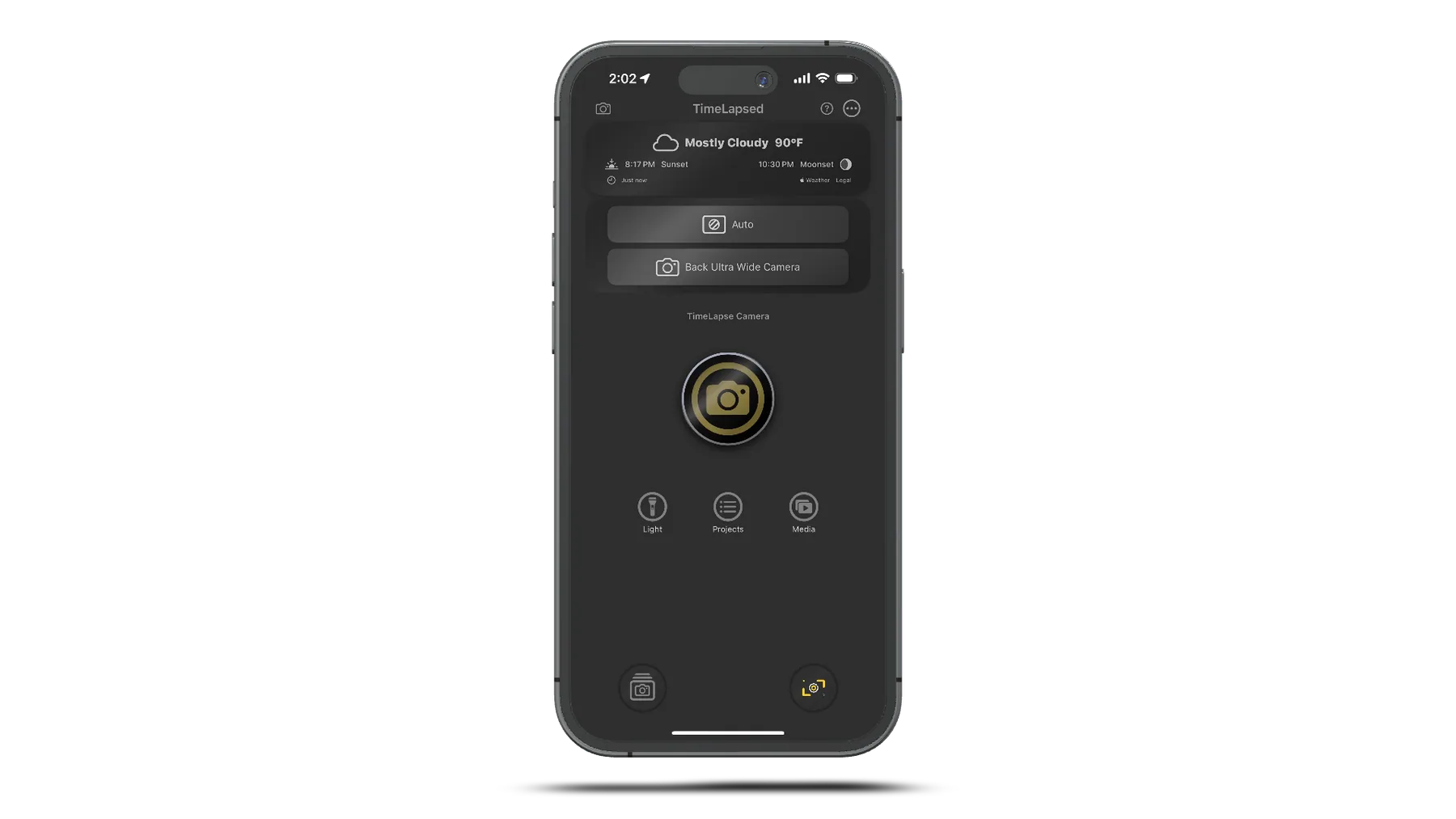
Get Started with iPhone Timelapses
Unlock the full creative potential of your iPhone
The iPhone camera is one of the simplest and most powerful tools for creating timelapses. The TimeLapsed App unlocks its potential using real-time effects and tools, allowing you to create compelling timelapses without the need for additional editing.
What you see on the screen of your TimeLapsed App is what will be recorded to video, providing you the flexibility to set up your scene exactly how you want. For creators using the full version of the app, you can save profiles and recall scenes with advanced features.
Creative Freedom
It's important to acknowledge that this is your creative tool, and there is no right or wrong way to use it. While there may be authoritative opinions within photography and video communities, we respect your desire to create what you like the most. That's why the app provides numerous tools built into its camera.
TimeLapsed App Camera
Advanced frame blending for stunning visual effects
The TimeLapsed App features one of the most advanced cameras on the market. With its frame blending algorithms, it can be used for various purposes such as light painting, capturing vehicle lights, or daytime blending for capturing birds or shadows. The app includes a built-in real-time Metal rendering engine custom-built for timelapses.
Frame Blending
Create light trails, smooth water effects, and motion blur with our advanced frame blending technology
Light Painting
Capture stunning light trails from vehicles, moving light sources, or stars in the night sky
Real-time Metal Rendering
See your timelapses as they're created with our real-time rendering engine built with Apple's Metal framework
Timelapse Profiles
25+ handcrafted profiles for instant creative effects
The TimeLapse profiles come bundled with the app. With over 25 handcrafted and field-tested profiles, you can achieve effects such as tilt-shift, light painting, and mind-blowing timelapses without any post-processing.
Auto Mode
This profile allows the camera to automatically adjust and is the easiest mode to use for standard capture. No image enhancements are applied, providing you with the image as the camera captures it.
Light Trails
Capture beautiful light trails from moving vehicles at night or in low light conditions.
Cloud Flow
Capture the dramatic movement of clouds across the sky with enhanced contrast.
Silky Water
Create smooth, silky water effects in rivers, waterfalls, and ocean scenes.
Tilt-Shift
Create a miniature effect that makes real-world scenes look like toy models.
* More profiles are available in the full version of the app
Timelapse Settings
Full control over your timelapse capture
In the TimeLapse Settings menu within the camera, you have full control over various settings including the countdown, timelapse interval, sounds, video speed, and more. We recommend exploring this tab for endless possibilities to configure your timelapse.
Key Settings
Capture Interval
Controls how frequently frames are captured. Shorter intervals create smoother movement while longer intervals create more dramatic time compression.
Duration
Set how long you want to capture footage. This is particularly useful for planned timelapses where you know the exact event duration.
Effects Strength
Controls the intensity of the selected profile's effects. Higher values create more dramatic results, while lower values are more subtle.
Image Enhancements
Perfect your timelapses with powerful adjustments
The Image Enhancement section of the camera allows you to change the look of your image by adjusting parameters such as Saturation, Contrast, and Brightness. This real-time adjustment capability means you can perfect your scene before you start recording.
Color & Contrast
- Saturation: Intensify or mute colors
- Contrast: Increase difference between light and dark
- Brightness: Adjust overall exposure
- Vibrance: Enhance colors without oversaturation
Clarity & Detail
- Sharpness: Enhance fine details
- Noise Reduction: Smooth out grain
- Clarity: Add definition to mid-tones
- Vignette: Add subtle darkening to frame edges
Pro Tip
For the most natural-looking timelapses, use subtle enhancements. Apply stronger effects only when going for an artistic or dramatic look. Refer to the Color Guide in the app for more details on how each enhancement affects your footage.
Video Speed Control
Master the pace of your timelapses
You can adjust the output video speed by modifying the Video Rate setting in the app. This concept allows you to capture at faster intervals during the timelapse and then slow down the output. If you wish to speed up a video, consider changing the Capture Interval to a longer interval.
Slow Motion
30-60 FPS with short capture intervals creates a detailed slow-motion effect for subtle movement.
Standard
24-30 FPS with medium capture intervals creates classic timelapse effects with smooth movement.
Hyperlapse
24 FPS with long capture intervals creates dramatic, fast-moving timelapses for extended events.
Understanding the Mathematics
The relationship between capture interval and playback speed creates the timelapse effect:
| Capture Interval | Output FPS | Speed Effect | 1 Hour Records As |
|---|---|---|---|
| 1 second | 30 FPS | 30x reality | 2 minutes |
| 2 seconds | 30 FPS | 60x reality | 1 minute |
| 5 seconds | 30 FPS | 150x reality | 24 seconds |
Example Gallery
Stunning timelapses created with the TimeLapsed App
Cityscape with light trails using the Light Trails profile
Cloud movement captured with the Cloud Flow profile
Sunset timelapse with enhanced colors
Waterfall with silky water effect using long exposure blending
Star trails created with the Night Sky profile
Traffic light trails using frame blending techniques
Pro Tips for Amazing Results
Stability Is Key
Always use a tripod or stable surface to eliminate camera shake. Even small movements will be magnified in your timelapse. For longer sessions, consider a portable battery pack to keep your iPhone charged.
Plan Your Composition
Look for scenes with both static elements (buildings, landscape) and dynamic elements (clouds, traffic, people). This contrast creates the most compelling timelapses.
Lighting Transitions
Some of the most dramatic timelapses capture changing light conditions. Golden hour, sunset, and blue hour provide stunning natural color changes. For these, use Auto Exposure with caution.
Experiment with Profiles
Don't be afraid to test different profiles on the same scene. Sometimes unexpected combinations create the most unique results. Save your favorite settings as custom profiles.
Explore More Guides
Advanced Light Painting Techniques
Master the art of light painting with TimeLapsed App. Learn how to create stunning light trails, orbs, and creative light effects in your timelapses.
Read guide
Astro Timelapses with iPhone
Capture the night sky like never before. Learn specialized techniques for photographing stars, the Milky Way, and celestial events with your iPhone.
Read guide
Urban Timelapses: City Guide
Create dynamic urban timelapses with your iPhone. Master traffic light trails, architecture shots, and capturing the pulse of city life.
Read guide