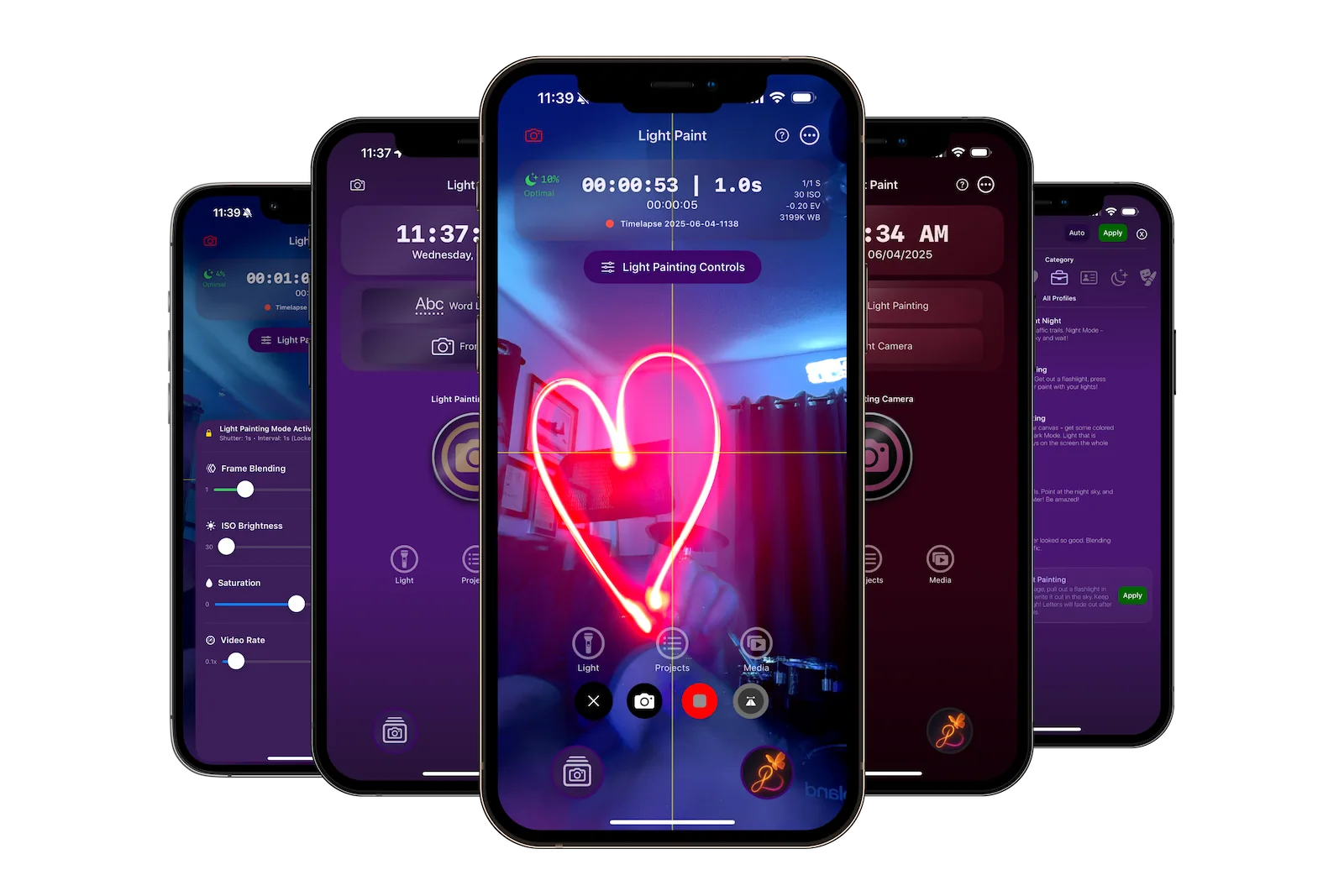
Why Photo Capture is Perfect for Beginners
- Instant photo with light effects built-in
- Automatic lighting enhancements
- No complex camera settings
<!-- -->
- Share immediately to social media
- Perfect for quick, creative shots
- Works great in various lighting conditions
Taking Your First Light-Enhanced Photo
1
Select Photo Capture Mode
Open Light Paint App and tap "Photo Capture". The app will automatically configure the camera for the best light-enhanced photos.
Automatic Setup:
- Optimizes camera settings for your lighting
- Enables light effect processing
- Prepares automatic enhancement filters
- Sets appropriate image quality
2
Frame Your Shot
Point your iPhone at your subject and compose your shot. Photo Capture works well with any subject, but lighting plays a key role in the final effect.
Great Subjects:
- Portraits with interesting lighting
- Architecture with shadows
- Nature scenes with natural light
- Street photography
- Still life with creative lighting
Composition Tips:
- Look for interesting light sources
- Consider shadows and highlights
- Use the rule of thirds
- Leave space for light effects
- Keep your iPhone steady
3
Tap to Capture
Simply tap the capture button. Light Paint App will take the photo and automatically apply light enhancements in real-time.
What Happens:
- Camera captures the image
- AI analyzes lighting conditions
- Automatic enhancements are applied
- Light effects are processed
- Final image is saved instantly
For Best Results:
- Hold steady when tapping
- Don't move until capture is complete
- Ensure good focus on your subject
- Work with available lighting
- Take multiple shots for variety
4
Review & Share
Your enhanced photo is immediately available in your camera roll and ready to share. No additional editing needed!
Instant Sharing Options:
- Share directly to Instagram, TikTok, Facebook
- Save to camera roll for later use
- Send via Messages or email
- Upload to cloud storage
- Use as wallpaper or profile picture
Automatic Light Enhancements
Brightness Enhancement
Automatically adjusts brightness and contrast to make your photos pop while maintaining natural look.
Color Enhancement
Enhances colors and saturation to make your photos more vibrant and eye-catching.
Light Effects
Adds subtle light effects and glow to create a professional, artistic appearance.
Creative Photo Ideas
Portrait Photography:
- Golden hour portraits
- Dramatic window lighting
- Silhouettes against bright backgrounds
- Creative shadow play
- Backlit hair and rim lighting
Creative Subjects:
- Architecture with interesting shadows
- Street scenes with neon lights
- Nature with natural backlighting
- Still life with dramatic lighting
- Cityscapes during golden hour
Tips for Better Light-Enhanced Photos
Lighting Techniques
- Look for side lighting for depth
- Use backlighting for dramatic silhouettes
- Avoid harsh overhead lighting
- Golden hour provides the best natural light
- Window light is perfect for portraits
- Experiment with shadows and highlights
Composition Tips
- Use the rule of thirds for better composition
- Include leading lines to guide the eye
- Look for patterns and symmetry
- Frame your subject with natural elements
- Leave negative space for light effects
- Change your perspective and angle
Explore More Light Paint App Features
Now that you've mastered photo capture, try the other creative modes
Light Painting Basics
Create dynamic light trail artworks
Try Light Painting
Simple Timelapses
Create beautiful timelapse videos
Learn Timelapses