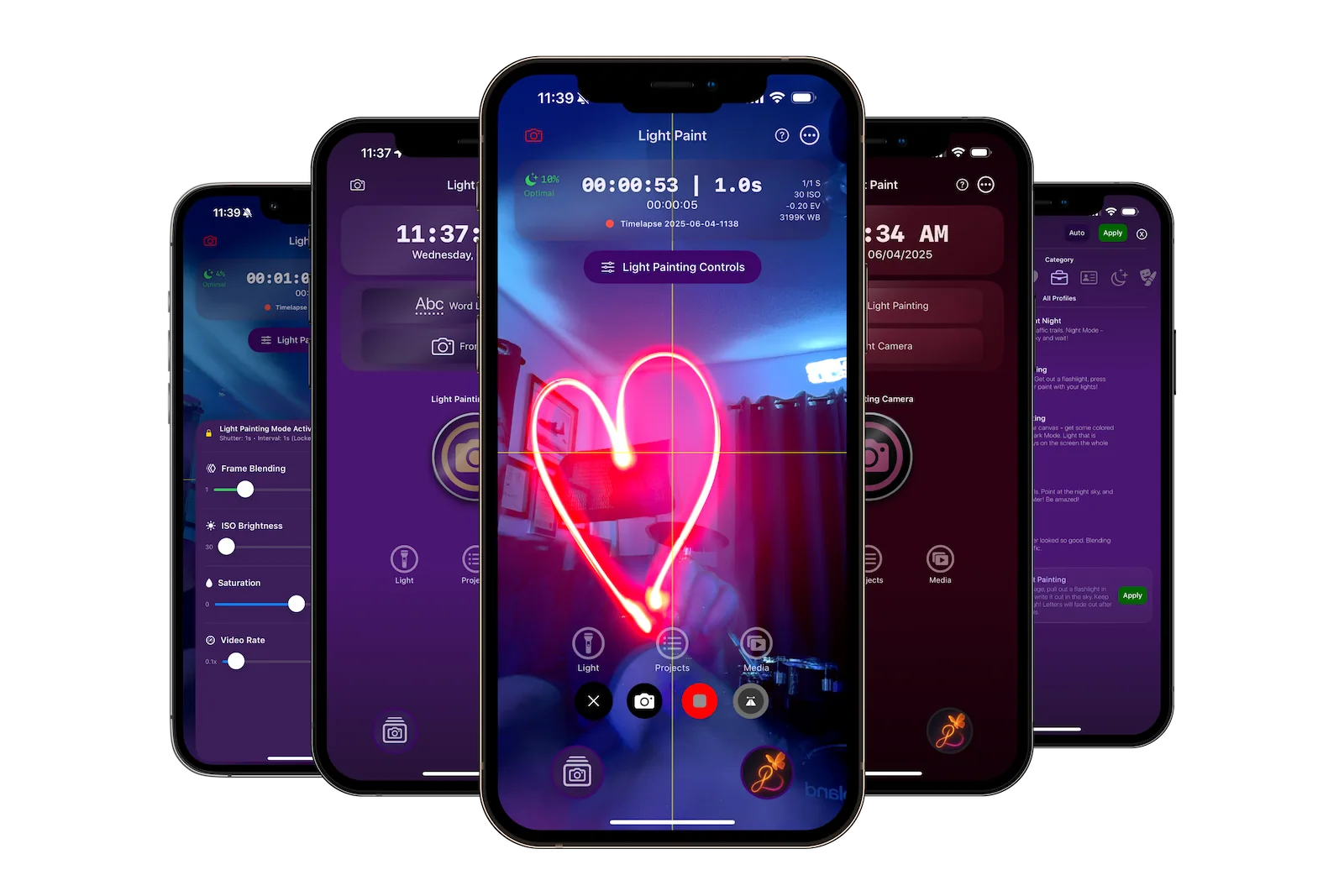
Watch How Easy It Is
See Light Paint App in action before you start
What You'll Need
Required:
- iPhone 11 or newer
- Light Paint - Timelapse Camera (from App Store)
- Any light source (flashlight, LED, etc.)
Recommended:
- Dark environment for best results
- Stable surface to place iPhone
- Colored lights for creative effects
Step-by-Step Tutorial
1
Download & Open Light Paint App
First, download the Light Paint - Timelapse Camera app from the App Store. It works on iPhone 11 and newer models.
2
Choose Your Mode
Light Paint App has three simple modes. For your first try, tap on "Light Painting" - it's perfect for beginners.
Light Painting
Best for beginners
Timelapse
Auto settings
Photo Capture
Instant results
3
Set Up Your Scene
Place your iPhone on a stable surface pointing at a dark area. The darker the environment, the better your light trails will show up.
Pro Tips:
- Turn off room lights for best results
- Make sure your iPhone is stable (use books or a stand)
- Frame your shot with some space for light movement
4
Create Your First Light Painting
Tap the record button and start moving your light source in front of the camera. You'll see the light trails appear in real-time!
Simple Movements:
- Draw circles or spirals
- Write letters or words
- Create abstract patterns
- Move slowly for smooth trails
Light Sources:
- Phone flashlight
- Small LED lights
- Colored flashlights
- LED strips or strings
5
Save & Share
When you're happy with your light painting, tap stop and save your creation. Light Paint App makes it easy to share on social media or save to your camera roll.
Congratulations!
You've just created your first light painting! The more you practice, the more creative you can get with your movements and light sources.
What's Next?
Now that you know the basics, explore more advanced techniques and features
Light Painting Basics
Learn more advanced light painting techniques
Next Guide
Simple Timelapses
Create beautiful timelapse videos
Learn More